1. Manual
Alt + = to trigger Equation Editor.
Default Unicode mode.
Type
“<<Equation>>(#4.1)”
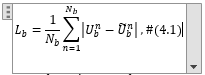
Enter
Result

*Note: No cross-referencing available!!!
2. Automatic and cross-referencing enable
2.1. Table way
- Insert 3 column table
- Format it to remove all margin and no border. Center align the middle cell, left align the left and right align the right
- Insert an example equation in middle cell and a citation in right cell
- Select whole table > Insert > On the Insert tab, in the Text group, click Quick Parts, and then click Save Selection to Quick Part Gallery, change the name and add a description if you like, and click OK.
- Assign a keyboard shortcut to the Quick Part via File > Options > Customize Ribbon > Customize. Choose the “Building Blocks” category in the dialog box and locate your entry. Use the “Press new shortcut key” box to assign the shortcut (e.g. Alt + Ctrl + =), and then click the Assign button.

2.2. Style separator way
- <Alt + => and type the equation
- Make it right align or pre-define a Styles that right-align.
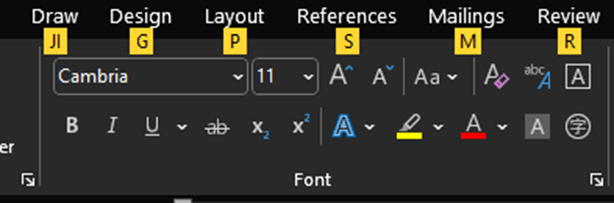
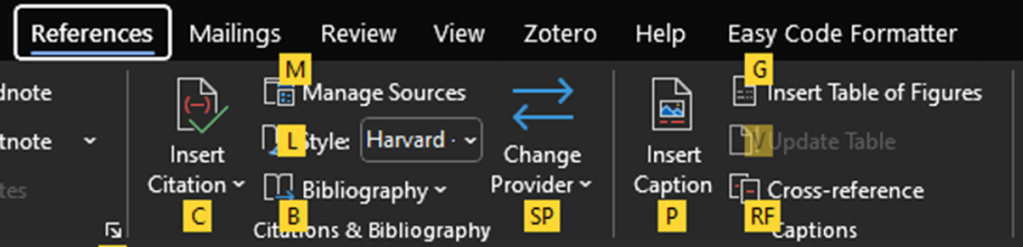
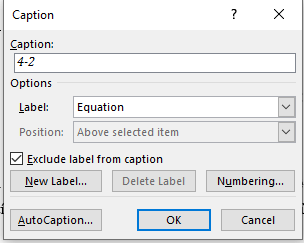
- Enter the next line and Insert caption (<Alt><S><P>)
- Place the cursor right at the end of equation and insert a Style separator <Ctrl+Alt+Enter>
- Manually adjust the spacing for sophisticated purpose.
2.3. Cross-referencing
<Alt><S>(quick:<R><F>) -> Equation…
 EngiNINE
Leave a comment