Tag: Plant3D

  • Custom Python Scripts for AutoCAD Plant 3D – Case study of tubing fittings – SCRIPT

    from varmain.primitiv import *
    from varmain.custom import *
     
    @activate(Group="Coupling", TooltipShort="Tube Male Connector TubexMPT", TooltipLong="Tube Male Connector TubexMPT", FirstPortEndtypes="P", LengthUnit="in",  Ports="2")
    @group("MainDimensions")
    @param(D=LENGTH, TooltipShort="Tube OD", TooltipLong="Tube OD")
    @param(D1=LENGTH, TooltipShort="Hex head OD", TooltipLong="Fitting hex head OD")
    @param(D31=LENGTH, TooltipShort="Hex OD of Body", TooltipLong="Hex OD of Body")
    @param(L=LENGTH, TooltipShort="Length of Fitting", TooltipLong="Overall Length of Fitting")
    @param(L31=LENGTH, TooltipShort="Tube gland", TooltipLong="Tube gland length")
    @param(I1=LENGTH, TooltipShort="Tube insert", TooltipLong="Tube insert distance")
    @param(OF=LENGTH0)
     
    #(arxload "PnP3dACPAdapter")
    #(testacpscript "maleConnector")
    def maleConnector(s, D=0.25, D1=0.5625, D31=1.0625, L=1.82, L31=0.6, I1=0, K=1, OF=0, **kw):
        #length
        L32 = L31*0.6 #adjusting the length of hex head
        L33 = L - L31 #adjusting the length of hex head
        L1 = 0.2 #adjusting the length of body
           
        #hex head
        headStartangle = 0
        headBox1 = BOX(s, L=D1, W=D1, H=L32).translate((L32/2,0,1.866*D1/2)).rotateX(headStartangle) #cos(30deg) = 0.866
        headBox2 = BOX(s, L=D1, W=D1, H=L32).translate((L32/2,0,1.866*D1/2)).rotateX(headStartangle+60) #cos(30deg) = 0.866
        headBox3 = BOX(s, L=D1, W=D1, H=L32).translate((L32/2,0,1.866*D1/2)).rotateX(headStartangle+2*60) #cos(30deg) = 0.866
        headBox4 = BOX(s, L=D1, W=D1, H=L32).translate((L32/2,0,1.866*D1/2)).rotateX(headStartangle+3*60) #cos(30deg) = 0.866
        headBox5 = BOX(s, L=D1, W=D1, H=L32).translate((L32/2,0,1.866*D1/2)).rotateX(headStartangle+4*60) #cos(30deg) = 0.866
        headBox6 = BOX(s, L=D1, W=D1, H=L32).translate((L32/2,0,1.866*D1/2)).rotateX(headStartangle+5*60) #cos(30deg) = 0.866
        headBox1.uniteWith(headBox2)
        headBox1.uniteWith(headBox3)
        headBox1.uniteWith(headBox4)
        headBox1.uniteWith(headBox5)
        headBox1.uniteWith(headBox6)
        headBox2.erase()
        headBox3.erase()
        headBox4.erase()
        headBox5.erase()
        headBox6.erase()
    
        head1 = CYLINDER(s, R=D1/2, H=L32, O=0).rotateY(90)
        head1.subtractFrom(headBox1)
        headBox1.erase()
    
        #body create
        bodyMain = CYLINDER(s, R=0.8*D1/2, H=L, O=0).rotateY(90)
    
        # hex head second
        head2Startangle = 0
        head2Box1 = BOX(s, L=D31, W=D31, H=L33*0.2).translate((L33*0.2/2+L31,0,1.866*D31/2)).rotateX(head2Startangle) #cos(30deg) = 0.866
        head2Box2 = BOX(s, L=D31, W=D31, H=L33*0.2).translate((L33*0.2/2+L31,0,1.866*D31/2)).rotateX(head2Startangle+60) #cos(30deg) = 0.866
        head2Box3 = BOX(s, L=D31, W=D31, H=L33*0.2).translate((L33*0.2/2+L31,0,1.866*D31/2)).rotateX(head2Startangle+2*60) #cos(30deg) = 0.866
        head2Box4 = BOX(s, L=D31, W=D31, H=L33*0.2).translate((L33*0.2/2+L31,0,1.866*D31/2)).rotateX(head2Startangle+3*60) #cos(30deg) = 0.866
        head2Box5 = BOX(s, L=D31, W=D31, H=L33*0.2).translate((L33*0.2/2+L31,0,1.866*D31/2)).rotateX(head2Startangle+4*60) #cos(30deg) = 0.866
        head2Box6 = BOX(s, L=D31, W=D31, H=L33*0.2).translate((L33*0.2/2+L31,0,1.866*D31/2)).rotateX(head2Startangle+5*60) #cos(30deg) = 0.866
        head2Box1.uniteWith(head2Box2)
        head2Box1.uniteWith(head2Box3)
        head2Box1.uniteWith(head2Box4)
        head2Box1.uniteWith(head2Box5)
        head2Box1.uniteWith(head2Box6)
        head2Box2.erase()
        head2Box3.erase()
        head2Box4.erase()
        head2Box5.erase()
        head2Box6.erase()
    
        head2 = CYLINDER(s, R=D31/2, H=L33*0.2, O=0).rotateY(90).translate((L31,0,0))
        head2.subtractFrom(head2Box1)
        head2Box1.erase()
    
        head2F = CONE(s, R1=D31/2*0.85, R2=D31/2*0.7, H=L33, E=0).rotateY(90).translate((L31,0,0))
        head2.uniteWith(head2F)
        head2F.erase()
    
        #joint 3 parts
        bodyMain.uniteWith(head1)
        bodyMain.uniteWith(head2)
        head1.erase()
        head2.erase()
    
        #create a hole fitting
        boreCy = CYLINDER(s, R=D/2, H=L, O=0).rotateY(90)
        bodyMain.subtractFrom(boreCy)
        boreCy.erase()
    
        #tube insert distance
        if I1 == 0:
            I1 = L31
        
        #set port points
        s.setPoint((0.0 + I1, 0.0, 0.0), (-1.0, 0.0, 0.0), 0)
        s.setPoint((L, 0.0, 0.0), (1.0, 0.0, 0.0), 0)
        
        return


    See PART 1:
    https://enginine.com/2025/11/11/custom-python-scripts-for-autocad-plant-3d-case-study-of-tubing-fittings-part-1/

  • Custom Python Scripts for AutoCAD Plant 3D – Case study of tubing fittings – PART 2

    After testing the script in PART 1, a geometry is created. Our job now is now publish it into the catalog.

    Image creation

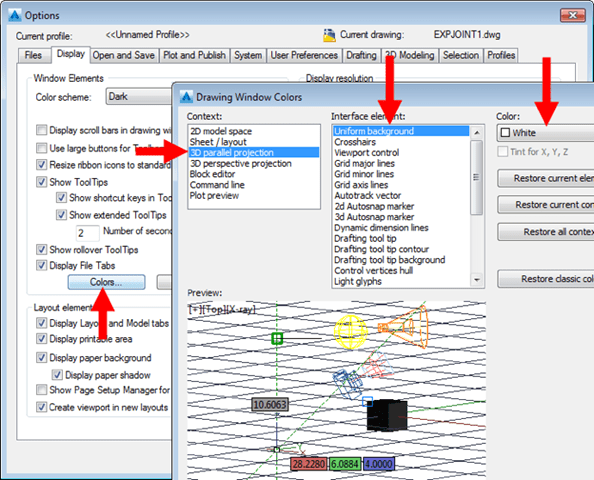
    Manually dim all the necessary and changing CAD environment into white background (or any color)

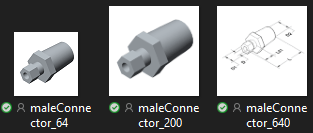
    Capture the image using an app like PicPick or Cropper to create three images with different sizes: maleConnector_64.png maleConnector_200.png maleConnector_640.png with size 64×64, 200×200, 640×640 accordingly

    PART CREATION

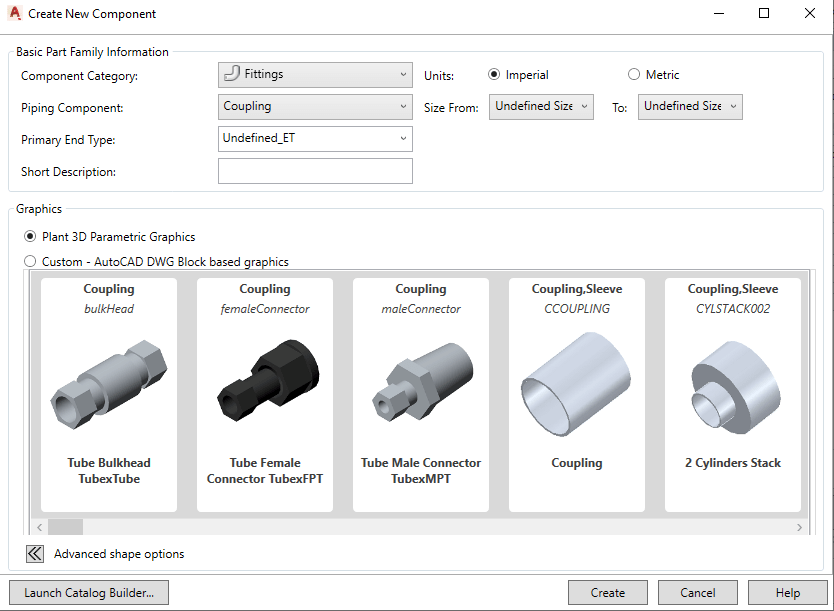
    Final step is to launch Spec Editor. Open an existing CustomCatalog (better than a whole new catalog using CatalogBuilder). Choose “Create New Component” and choosing our part by selecting the group (defined in script).

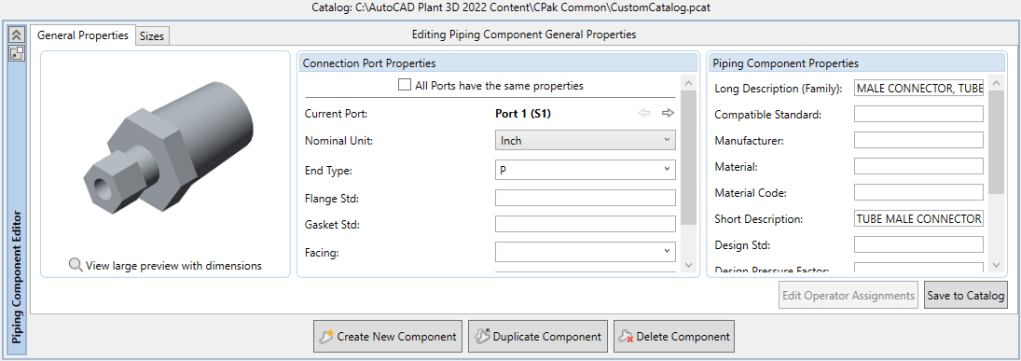
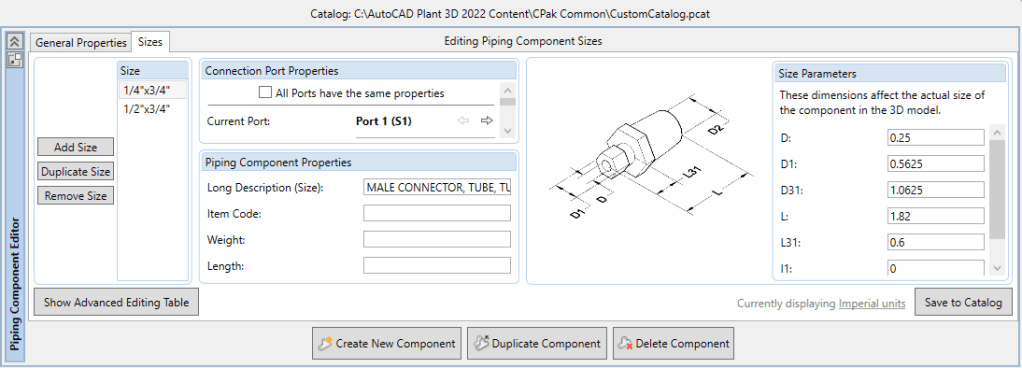
    Setting and save the catalog. Now it ready-to-use in Plant3D.

    See PART 3:

    https://enginine.com/2025/11/11/custom-python-scripts-for-autocad-plant-3d-case-study-of-tubing-fittings-script/

  • Custom Python Scripts for AutoCAD Plant 3D – Case study of tubing fittings – PART 1

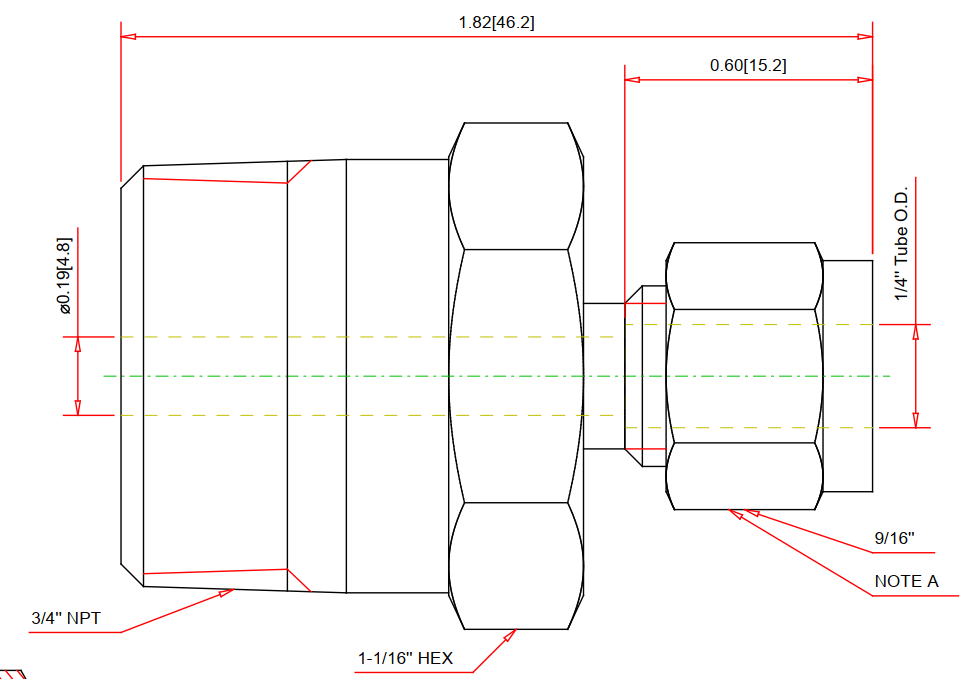
    Let’s try a simple male connector. First, we’ll grasp a drawing from Swagelok as reference:

    Coding

    We import libraris in the header, then define part’s principal dimensions which used to drive the entire model, serving as user inputs:

    from varmain.primitiv import *
    from varmain.custom import *
     
    @activate(Group="Coupling", TooltipShort="Tube Male Connector TubexMPT", TooltipLong="Tube Male Connector TubexMPT", FirstPortEndtypes="P", LengthUnit="in",  Ports="2")
    @group("MainDimensions")
    @param(D=LENGTH, TooltipShort="Tube OD", TooltipLong="Tube OD")
    @param(D1=LENGTH, TooltipShort="Hex head OD", TooltipLong="Fitting hex head OD")
    @param(D31=LENGTH, TooltipShort="Hex OD of Body", TooltipLong="Hex OD of Body")
    @param(L=LENGTH, TooltipShort="Length of Fitting", TooltipLong="Overall Length of Fitting")
    @param(L31=LENGTH, TooltipShort="Tube gland", TooltipLong="Tube gland length")
    @param(I1=LENGTH, TooltipShort="Tube insert", TooltipLong="Tube insert distance")
    @param(OF=LENGTH0)
    

    Define the function:

    def maleConnector(s, D=0.25, D1=0.5625, D31=1.0625, L=1.82, L31=0.6, I1=0, K=1, OF=0, **kw):
    

    As AutoCAD Plant 3D (PLNT3D) only accept a few primitives, we have to being creative in our coding part.

    Hex nut shape will be treat as a cylinder being trimmed by six cubes, then delete these cubes away:

        #hex head
        headStartangle = 0
        headBox1 = BOX(s, L=D1, W=D1, H=L32).translate((L32/2,0,1.866*D1/2)).rotateX(headStartangle) #cos(30deg) = 0.866
        headBox2 = BOX(s, L=D1, W=D1, H=L32).translate((L32/2,0,1.866*D1/2)).rotateX(headStartangle+60) #cos(30deg) = 0.866
        headBox3 = BOX(s, L=D1, W=D1, H=L32).translate((L32/2,0,1.866*D1/2)).rotateX(headStartangle+2*60) #cos(30deg) = 0.866
        headBox4 = BOX(s, L=D1, W=D1, H=L32).translate((L32/2,0,1.866*D1/2)).rotateX(headStartangle+3*60) #cos(30deg) = 0.866
        headBox5 = BOX(s, L=D1, W=D1, H=L32).translate((L32/2,0,1.866*D1/2)).rotateX(headStartangle+4*60) #cos(30deg) = 0.866
        headBox6 = BOX(s, L=D1, W=D1, H=L32).translate((L32/2,0,1.866*D1/2)).rotateX(headStartangle+5*60) #cos(30deg) = 0.866
        headBox1.uniteWith(headBox2)
        headBox1.uniteWith(headBox3)
        headBox1.uniteWith(headBox4)
        headBox1.uniteWith(headBox5)
        headBox1.uniteWith(headBox6)
        headBox2.erase()
        headBox3.erase()
        headBox4.erase()
        headBox5.erase()
        headBox6.erase()
    
        head1 = CYLINDER(s, R=D1/2, H=L32, O=0).rotateY(90)
        head1.subtractFrom(headBox1)
        headBox1.erase()
    

    After create other shapes, we combine them into one body:

        #joint 3 parts
        bodyMain.uniteWith(head1)
        bodyMain.uniteWith(head2)
        head1.erase()
        head2.erase()
    

    Create insert point and port points. As tube will penetrate these fittings in tubing port, we have to offset one port inwardy:

        #tube insert distance
        if I1 == 0:
            I1 = L31
        
        #set port points
        s.setPoint((0.0 + I1, 0.0, 0.0), (-1.0, 0.0, 0.0), 0)
        s.setPoint((L, 0.0, 0.0), (1.0, 0.0, 0.0), 0)
    

    Code Testing

    Choose Share Content folder by command MODIFYSHAREDCONTENTFOLDER or use default location (C:\AutoCAD Plant 3D 2016 Content\CPak Common\CustomScripts). Save script file at that location.

    Command PLANTREGISTERCUSTOMSCRIPTS to compiled the script. Load PnP3dACPAdapter.arx by arxload "PnP3dACPAdapter".

    Test the script by testacpscript "maleConnector".

    Note: If any modification, PLNT3D must be closed, then register script again.

    See PART 2:

  • Plant3D Database PnPID, GUID vs

    • GUID (Globally Unique Identifier)
    • PnPID is a numeric, sequential ID that is unique within a specific project and spec (not necessarily globally unique)
    GUID is a 128-bit value, typically displayed as 32 hexadecimal digits, which is so large that the probability of the same number being generated twice is negligible. This uniqueness is crucial for ensuring a stable link between the spec and catalog files

    The Model-Spec Connection

    To understand how PnPID works, it’s important to distinguish between its use in the spec file and its use in the project’s 3D model database:

    • PnPID in the Spec: When you add a component part to a piping spec using the Spec Editor, that part is automatically assigned a new, unique PnPID. This ID is stored in the spec’s database file (.pspc).
    • PnPID and SpecRecordID in the Model: When you place that component from the spec into a 3D model, the component in the model is assigned its own unique PnPID within the project database. To maintain the link back to the spec, this model component also stores the original PnPID from the spec. This stored value is called the SpecRecordID.

    As shown in the database diagrams, the SpecRecordID in the project database (for example, in the Flange_PNP view) directly corresponds to the PnPID in the spec database. This creates a “one-to-many” relationship, where a single part entry in a spec (with one PnPID) can be linked to many instances of that part in the 3D models.

    Is PnPID Created per Item Family or per Size?

    The sources indicate that a PnPID is created for each individual part entry added to a spec, which effectively means it is created per size, not per item family.

    • The software automatically generates a new PnPID each time a part is added to a spec.
    • When building a spec, you typically add a component family (e.g., “Gate Valve, Conduit, 150 LB, RF”) from a catalog for a specific range of sizes. Each size becomes a separate record, or row, in the spec database.
    • Since each part added gets a new PnPID, a 2-inch valve and a 4-inch valve from the same family will be treated as separate parts in the spec and will therefore be assigned different, unique PnPID numbers.

    Deleting a part from a spec permanently breaks this connection for any associated 3D model parts because the PnPID is removed, and even re-adding the same part will generate a new, different PnPID. This highlights the importance of the PnPID being unique to each specific part entry (i.e., each size) within the spec.

    SizeRecordID?

    SizeRecordID is a Globally Unique Identifier (GUID)

    Link a specific part (including its size) from a catalog to its corresponding entry in a spec

    The Impact of Losing a SizeRecordID

    A new SizeRecordID is generated when a new component is added to a catalog. Because the SizeRecordID is the key that links a spec part back to its catalog origin, any action that changes this ID breaks the connection.

    For instance, if you delete a part from a spec and then add the “same” part back from the catalog, the new spec entry will have the same SizeRecordID as the catalog part, but you will have broken the link for any existing 3D model components, because that action will have created a new PnPID for the spec part.

    It is not possible to recover a lost SizeRecordID connection for a part. The recommended best practice is to never delete items from a spec if they are already in use in a model. Instead, you should modify the description to mark it as obsolete (e.g., “OUT OF SPEC“) and then use the PLANTSPECUPDATECHECK command and Data Manager to find and replace the “orphaned” parts in the model with a valid substitute

    Reference

    handout_11136_OG11136_20-_20_20AutoCAD_20Plant_203D_20Specs_20and_20Catalogs_20How_20to_20Create_20Unbreakable_20Project_20Workflows.pdf